A chair can seem to push you away from the desk for several different reasons: the wheels may roll backward, the backrest may resist your preferred position, the seat may let you slide forward, or the arms and base may physically prevent you getting close. Identify which part moves before adjusting anything. A problem that feels like excessive recline tension may actually be a foot-support or desk-clearance problem.
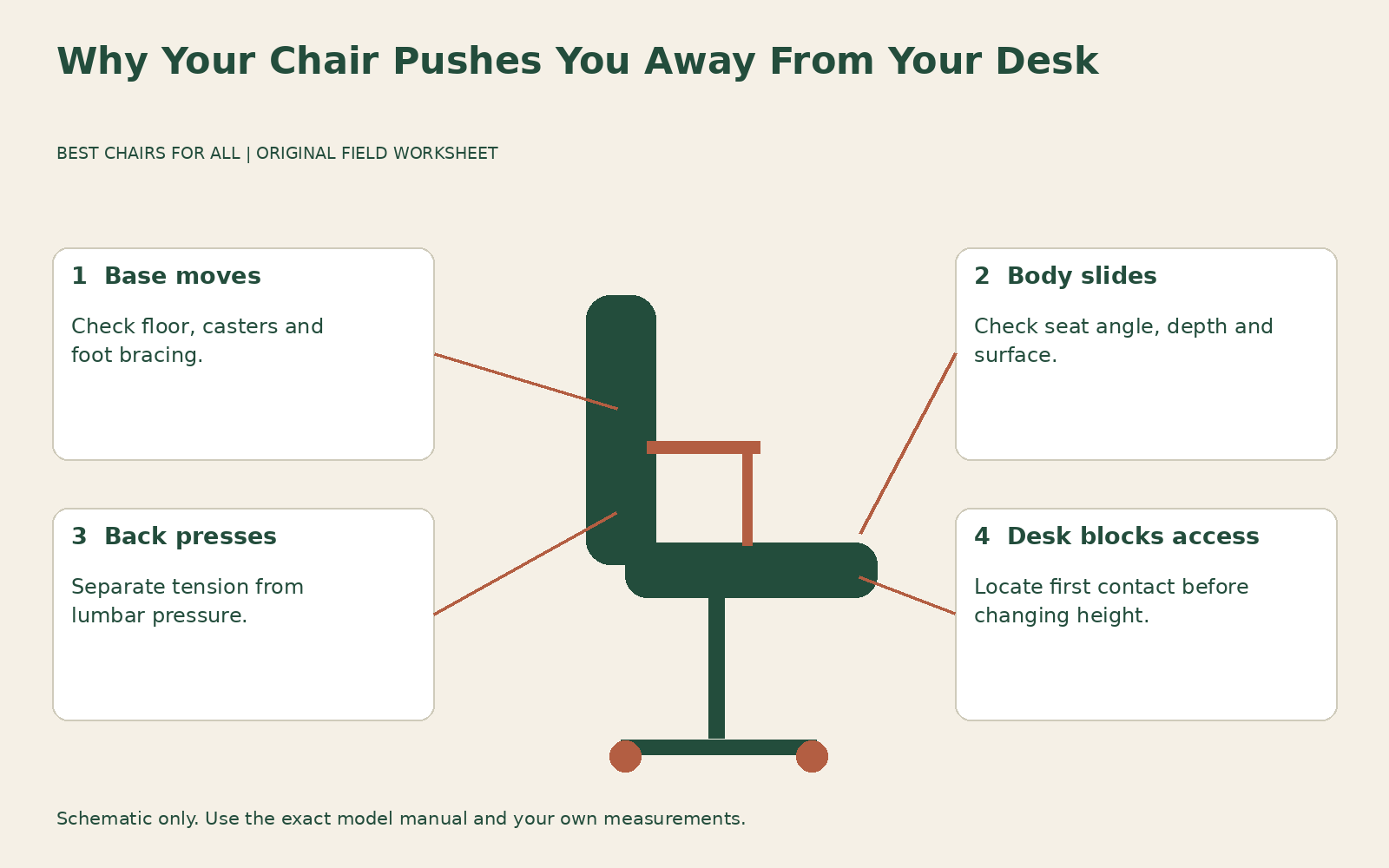
Use the observation sequence below to distinguish rolling, sliding, spring resistance, and obstruction. The practical artifact is a four-branch diagnosis sheet with one controlled change for each branch. It is a fitting and maintenance aid, not a way to certify a damaged chair or open its internal mechanism. Stop using a chair with visible structural damage, unexpected collapse, or a failed control and seek manufacturer or workplace service guidance.
Observe the chair away from the desk
On a clear, suitable floor, sit normally with your feet supported and note what moves when you relax against the backrest. Does the entire base travel? Does your body move toward the seat edge while the base remains still? Does the back push your upper body forward without moving the wheels? These observations are easier to make away from the desk because there is no nearby edge to brace against.
Ask someone to watch from the side if useful, or make a short recording that excludes private screens and documents. Do not lean beyond the normal movement range to exaggerate the symptom. You only need to see whether the contact between wheels and floor changes position. A pencil mark on a removable sheet beside the chair can provide a reference without putting tape or abrasive marks on furniture.
Write the observation before naming a cause. “Base rolls backward when feet press on footrest” is much clearer than “bad ergonomics.” “Body slides while base stays still” directs you to a different branch. Several causes can coexist, so choose the first obvious movement and reassess after one relevant change instead of turning all controls at once.
Branch one: the whole chair rolls backward
If the base moves, inspect the floor and rolling surface. A sloped floor, mat edge, rug ridge, or an object beneath one caster can create a directional tendency. Compare the chair in another level area where its casters are appropriate, without using that comparison as a permanent workaround. If it behaves differently, report or address the floor arrangement before concluding that the back mechanism is defective.
Check whether your feet are pushing the chair away. A footrest that is too distant or a chair set too high can leave you bracing instead of resting your feet. Move the support into a useful position and repeat the ordinary task. CCOHS office chair adjustment treats foot support and work surface height as connected adjustments, which is particularly relevant when a fixed high desk requires a raised seat.
Look for caster specifications that match the flooring and exact chair. Very free-rolling wheels may make small forces more noticeable, while unsuitable wheels can make positioning difficult. Do not wedge the wheels with loose objects or buy random locking casters without checking compatibility, installed height, and the manufacturer’s guidance. Our caster compatibility guide covers that separate purchasing decision in more detail.
Branch two: your body slides while the base stays still
Check whether forward seat angle is engaged. A seat sloping toward the front can feel as though it ejects you if the position does not suit your task, foot support, or clothing. Return it to the ordinary position using the exact manual and compare. A recline tension knob does not necessarily control the seat angle, so first confirm which function you are changing.
Seat depth also affects where you can remain comfortably. A too-deep seat may encourage you to move forward to clear your knees, leaving your back unsupported. A thick added lumbar cushion may occupy sitting space and push your pelvis toward the front. Remove only optional accessories that are safe to remove and compare the chair in its intended configuration before adding more padding.
Note the seat covering and normal work clothing. A slick surface can interact with a declined angle differently from a fabric surface, but that observation does not justify roughening the upholstery or applying a sticky product. You need an arrangement that works without damaging the chair or requiring constant muscular bracing. If the sliding persists across reasonable normal settings, it may be a material or geometry mismatch.
Branch three: the backrest feels too forceful
Now investigate recline resistance. Some chairs use a tension adjustment, some use weight-responsive systems, and some provide a separate upright support or lumbar pressure control. A lever that limits movement is not the same as a knob that changes resistance. Read the actual manufacturer instructions before deciding that turning one control will make the entire chair softer.
For a model-specific example, the Classic Aeron adjustment guide identifies the tension control separately from forward tilt and tilt limiting. Its stated directions apply to that guide and generation. Do not transplant them to another chair because a knob looks similar. Make a modest permitted adjustment, then test controlled movement with your feet supported.
If reducing resistance makes the back easier to move without changing the rolling behavior, you have identified a meaningful contributor. If the back still presses locally in the lower back, investigate lumbar pressure and location separately. If it abruptly releases or cannot hold an intended setting, stop the experiment and request service instead of continuing to loosen controls until the behavior is masked.
A chair can also feel forceful simply because you are trying to work in a position it does not offer. If the back naturally returns upright but you want a supported partial recline, check whether a limiter or approved locking position exists. Do not use a desk edge, strap, or wedged object to hold the chair at an unsupported angle.
Branch four: the chair cannot approach the desk
Move the chair toward the workstation slowly while occupied and identify the first point of contact. Arm pads may hit the underside, a foot ring may meet a pedestal, or the base may reach a desk support before your body is close enough. Record the obstruction itself; overall desk height is not enough when a drawer or apron creates a lower clearance point.
OSHA workstation desks discusses work-surface access and leg space. In this diagnosis, use a simple sketch to show where the collision occurs relative to the keyboard. If shorter or retractable arm pads are part of the chair’s normal adjustments, test them. Do not lower the entire seat solely to clear an armrest if that makes the keyboard too high or leaves the legs poorly supported.
Sometimes no furniture moves at all: the keyboard or mouse is simply too far away. Bring the frequently used device closer and clear unused objects from the main reach area. If a deep monitor stand or laptop dock occupies the whole front surface, reorganizing the desk may offer more benefit than adjusting the chair. A bigger chair cannot shorten the distance to an inaccessible keyboard.
Complete a one-change diagnosis sheet
Use four rows headed base rolling, body sliding, back resistance, and desk obstruction. For each, record “observed,” “not observed,” or “uncertain.” Then choose one observed row and write a single change, such as bringing the footrest nearer or returning forward tilt to the ordinary setting. Repeat the same short task with the rest of the arrangement unchanged.
An illustrative entry might read: “Base rolling observed during typing; footrest moved from beyond comfortable reach to directly beneath feet; rolling reduced, back pressure unchanged.” That result suggests the footrest position was part of the problem while leaving a separate back-support question. It does not prove a clinical benefit, a caster defect, or a need to replace the whole chair.
Another example: “No rolling away from desk; right arm pad contacts drawer before keyboard is reachable; pad moved backward within approved range; desk access improved.” This tells you to keep the clearance adjustment and reassess the keyboard position. If the arm assembly has no approved way to clear the desk, record a configuration limit instead of forcing it underneath.
Compare another workstation without changing the diagnosis
If you can use a second suitable desk, repeat only the ordinary working task there and note the differences in underside clearance, floor surface, and keyboard location. Keep the same shoes and chair settings for this comparison. An improvement at the second desk suggests a workstation relationship worth investigating, but does not identify which changed feature caused it. Return to your original notes and test the most plausible difference individually. If you also switch to another chair, record that as a separate comparison. Otherwise you may credit a new back mechanism for an improvement that actually came from a closer keyboard or a more stable footrest.
Know when to stop adjusting
Seek service if the seat or back changes position unexpectedly, a control does not behave as the manual describes, or a previously stable chair develops substantial play. Share the model label, the observed movement, the setting involved, and whether the problem began suddenly. A concise description helps support distinguish an adjustment question from a component failure without asking you to disassemble the mechanism.
Seek fitting help if every plausible adjustment creates a new conflict, such as good desk height with no usable foot support or comfortable lumbar contact with insufficient seat depth. Persistent pain or numbness warrants appropriate professional advice; do not keep experimenting merely to complete a worksheet. The useful result is an identifiable cause and a stable working arrangement, whether that involves a small setup correction, a workstation change, service, or a different chair.
Something unclear or out of date? Send a correction with this article’s title and the detail to check.
Sources, research & corrections policy ↗